 Certia
SOC 2 user accessreview in Jira Cloud:step by step
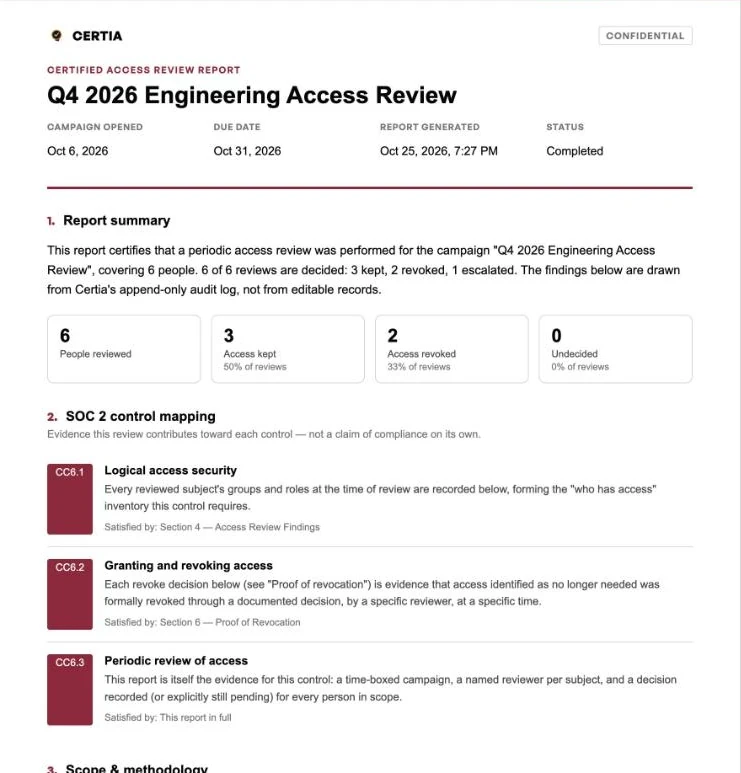
A review only proves something about a point in time. Done well, it shows who held access, who decided, and why, using only what Jira Cloud and Atlassian Administration give you.
- Fix the scope and an as-of date.
- List everyone with access, including direct project-role and permission-scheme grants, not just groups.
- Give reviewers context: last active date, how access was granted, anything unusual.
- Assign reviewers who know the work, and avoid self-review.
- Record keep, revoke or escalate, with a reason, for every person.
- Remove revoked access and keep proof.
- Package the evidence and store it so it can't be quietly edited.
What SOC 2 requires, and what it doesn't
SOC 2 is built on the AICPA's Trust Services Criteria. Access reviews fall under the logical access criteria:
- CC6.1: logical access security over protected information assets.
- CC6.2: registering, authorizing and removing user credentials. Its points of focus include reviewing "the appropriateness of access credentials … on a periodic basis."
- CC6.3: authorizing, modifying and removing access based on roles and responsibilities, with least privilege and segregation of duties in mind, plus a periodic review of access roles and rules.
The criteria say periodic. They don't say quarterly, and they don't name a tool. Your own policy sets the cadence, and the auditor tests you against it. Quarterly is the most common choice for Type II periods.
It's also worth being precise about what a review proves. It's evidence that a control operated during the period. It doesn't make an organization compliant on its own.
Step 1: Fix the scope and an as-of date
Decide which Jira site, which projects, and whether Confluence is in scope. Then pick an as-of date and capture all access as of that day.
The audit log tells you what changed, not who held access on a particular day.
Why the snapshot matters
If you don't snapshot the population when you review it, you won't be able to show it later.
Step 2: List everyone with access, including direct grants
In Jira Cloud, a person can reach a project through:
| Source | Where it's set | In a group-only review? |
|---|---|---|
| Product access groups | Atlassian Administration | Yes |
| Global permissions (e.g. Administer Jira) | Jira settings, granted to groups | Yes, if you check those groups |
| Project role membership | Each project's Project settings > People | Only if granted via a group |
| Permission scheme grants | Permission schemes, can point at a single user | No, for single-user grants |
Project roles are defined once for the whole site, but who holds them is set separately in every project, and people can be added by name. That's how someone removed from a team's group can still be an Administrator on one project a year later.
For each in-scope project, record every role and scheme grant, resolve groups to people, and keep each person's accountId alongside their name. Names change; accountIds don't.
Step 3: Give reviewers context, not just names
A spreadsheet of names gets approved line by line without much thought. For each person, add:
- Last active. The user export in Atlassian Administration has a "Last seen in <product>" column for each product. It's a sign-in signal, not proof of need.
- How access was granted. Group, project role, or direct grant.
- Flags. Admin-level access, external domains, deactivated accounts that still hold roles.
Step 4: Assign the right reviewers
Reviewers should be the people who know whether the access is still needed: managers or project leads. The Jira admin who granted access is usually the wrong person. Nobody should approve their own access.
Step 5: Record a decision and a reason for everyone
For each person: keep, revoke, or escalate; a one-line reason; who decided; when. Require a reason for keep too. A review that's 98% "keep" with no reasons is a common audit finding, because nothing shows anyone looked.
Step 6: Remove access and prove it
Remove the exact grant that gave access. If it came from a direct project role, removing the person from a group won't touch it. Log when it was removed and by whom, re-check, and keep the result. Auditors often sample revocations and check that they happened promptly after the review.
Step 7: Package and keep the evidence
Your evidence pack should include the scope and as-of date, the full population with how each person got access, the reviewer and decision for every person with timestamps and reasons, revocation evidence, and a sign-off. Store it where it can't be edited after the fact, and keep it at least through the audit.
Checklist
Tap items to tick them off. Your ticks stay in this browser only.
- Scope and as-of date written down
- Product access groups and global-permission groups listed
- Every in-scope project's role members and scheme grants listed, including direct users
- Every person resolved to an accountId
- Last-active date and access source added for every person
- Reviewer assigned for every person, no self-review
- Decision, reason, reviewer and date recorded for every person
- Every revoke carried out, with date and proof
- Evidence pack stored read-only, sign-off recorded
Sources: AICPA, 2017 Trust Services Criteria (revised points of focus, 2022), CC6.1–CC6.3; Atlassian Support, granting access with shared permission schemes and exporting users.
More guides
All guidesWho actually has access to your Jira project?
Group membership vs. direct role grants, and why reviews miss the second.
Confluence space permissions audit
Finding direct space grants that bypass your groups.
What counts as evidence for CC6.2 and CC6.3
What an auditor accepts from an access review, and what they don't.